
Text to GIF Generator
Describe a subject and its motion. Generate an animated GIF directly with AI.
- 30 free AI credits after you verify your email
- AI GIFs from 20 credits, refunded if a job fails
- Six styles, 8 or 16 frames
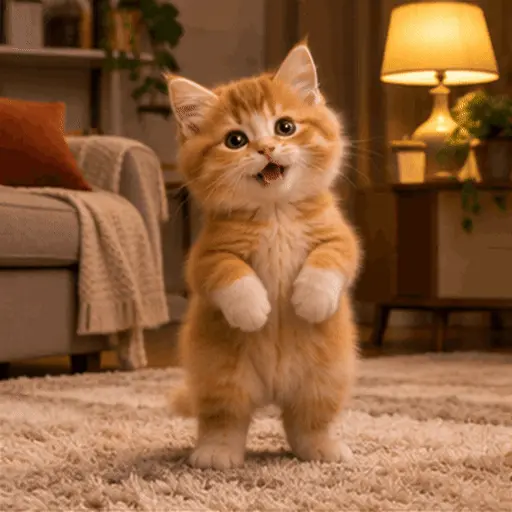
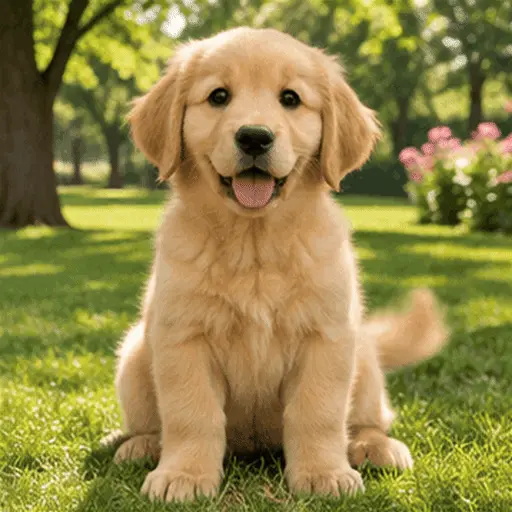
GIF examples
How to make a GIF from text
Describe one action
Write the subject, motion, background and style in a short prompt.
Choose frames and quality
Select a frame count, delay and quality. Check the quoted credits and complete verification.
Generate the GIF
The model returns an animated GIF. Review the result in the tool or My GIFs and download a copy.
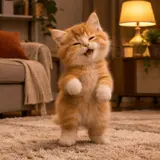
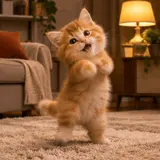
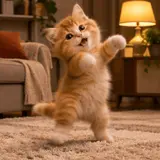
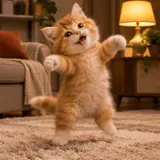
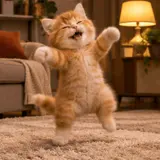
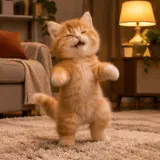
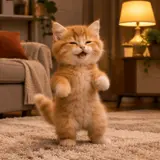
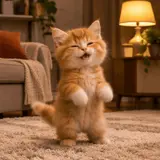
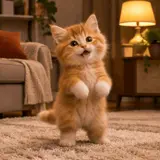
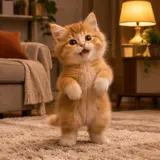
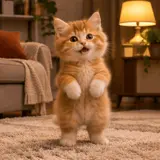
Write a text-to-GIF prompt with one clear action
A useful prompt names a subject, a motion and a setting. The selected style supplies visual direction; it does not replace a description of what should move. Keep camera movement simple when the GIF must read at a small size.
Less specific: “An amazing animal animation with lots happening.”
More specific: “A small clay cat waves one paw on a plain cream background, keeping its body still, repeating the gesture.”
Choose a style for the motion
Reaction emphasizes an expressive gesture. Sticker uses a bold shape and an opaque background. Cinemagraph keeps most of the scene still. Anime, Pixel and Claymation guide the illustration style. Frame count controls the available poses; frame duration controls their playback timing. The result shows the generated frame dimensions.
| Feature | Free | Starter | Pro |
|---|---|---|---|
| Local width | 720px | 1080px | 1080px |
| Local duration | 15s | 60s | 60s |
| Local frames | 300 | 900 | 900 |
| AI jobs at once | 1 | 2 | 4 |
| AI jobs per day | 10 | 100 | 250 |
| Saved GIF retention | 7 days | 90 days | 365 days |
| Photos per AI batch | 1 | 1 | 4 |
| Local watermark | None | None | None |
| AI watermark | Included | None | None |
| Maximum GIF file | 30 MB | 30 MB | 30 MB |
Text to GIF Generator FAQ
Does the model generate an actual animated GIF?
Yes. The configured Atlas GPT Image 2.6 endpoint supports animated GIF output. It receives the prompt and frame settings; the server validates and privately saves the returned GIF. This tool does not generate a video and convert it into a GIF.
How should I write a prompt?
Name the subject, one visible action, the background and the visual style. Add how the motion should repeat. For example, a small clay cat waving on a plain cream background is easier to interpret than a long list of unrelated actions and camera cuts.
Can I choose the exact output dimensions?
AI chooses the GIF frame size automatically. The result card reports the actual width and height after generation.
What do frame count and frame duration change?
Frame count determines the number of animation frames and can increase the model cost. Frame duration controls how long each frame remains visible. More frames can describe a longer movement, while a longer frame duration slows the same sequence. Review the credit quote before generating.
Can I generate readable text or a logo?
The tool can attempt described artwork, but exact lettering, trademarks and small details may change between frames. Avoid relying on an AI GIF for an exact brand mark. Combine your own approved image frames locally when exact text or logos must remain consistent.
Which content is allowed?
Use original or authorized material. Explicit sexual content, exploitation, non-consensual impersonation, targeted abuse and illegal or infringing material are prohibited. Prompts are reviewed before a task is created; a blocked prompt does not spend generation credits.
What if the animation is not what I expected?
AI output varies. Narrow the prompt to one action and choose a suitable style for another attempt. A completed result that differs from your preference is not a technical failure and does not automatically return credits. Confirmed provider failures follow the credit-refund rule.