
Free GIF Compressor
Choose a target file size or adjust colors, frames and scale.
- Runs in your browser, no upload
- Target sizes for Discord and Slack
- See the size before and after
How to compress a GIF
Choose your GIF
Select an animated GIF from your device. Check its dimensions, frame count, duration and file size before processing.
Choose a target or manual settings
Pick a file-size target or adjust quality, colors, frames and scale. Target mode tries up to six combinations and reports its progress.
Compare and download
Review the original and compressed animation and the measured file sizes. Download the smaller result, or change settings and try again.
How GIF compression works here
Colors
Each GIF frame stores pixel indexes into a color palette. Reducing the palette to 128, 64 or 32 colors can make that representation smaller. Flat illustrations often tolerate a smaller palette better than photographic gradients. Compare faces, shadows and smooth backgrounds for visible bands. The comparison table reports the largest encoded palette table in each file, including any transparent entry.
Lossy frame differencing
For opaque animations, the encoder compares each frame with the previous displayed output. Pixels within the selected quality tolerance become transparent references to the existing picture. The first frame is written in full, and subsequent frames retain the previous picture beneath unchanged areas. A lower quality setting permits larger color differences to be skipped. Comparing against the actual output prevents small changes from being ignored indefinitely as the source changes.
If any composited source frame contains transparency, the tool disables frame differencing for the entire animation. It then writes complete frames that clear before the next frame. This preserves disappearing objects and transparent backgrounds without leaving trails.
Removing frames
Keep all preserves every source frame. Remove every 2nd removes alternating frames, while Remove every 3rd removes one frame in each group of three. Each removed frame’s delay is added to the preceding retained frame. The animation lasts just as long, but moving objects have fewer intermediate positions. Check fast gestures, transitions and small moving text before choosing frame removal.
Scaling
Scale reduces both dimensions together, from 100% down to 25%. The tool uses the same stepwise downscaling as GIF Resizer. This can help when color and frame changes are insufficient, but small labels and fine lines become less readable. Target mode adjusts colors and frame settings before reducing dimensions.
How to make a GIF smaller
Screen recordings
Start at 100% scale with all frames, particularly when the recording includes text. Try 128 colors and compare small labels and highlighted controls. Static toolbars and backgrounds can benefit from frame differencing, while cursor movement should remain visible. If the motion is slow, test removing every 3rd frame. Reduce scale only after checking whether the text remains legible at the intended display size.
Photos and camera footage
Begin with 256 colors and a high quality setting. Photography often contains many gradients, textures and subtle changes between frames, so aggressive color reduction can introduce bands or unstable patches. A modest reduction in scale may look better than a very small palette. Compare faces and backgrounds throughout the loop, and use frame removal cautiously when camera movement is fast.
Cartoons and stickers
Try 64 or 32 colors when the artwork uses broad, flat areas. Keep all frames initially so expressions and gestures retain their rhythm. For opaque artwork, lower quality gradually and inspect moving outlines. If the destination requires an emoji size, set that size with GIF Resizer before selecting the matching file-size target here.
Transparent GIFs
Frame differencing is automatically disabled when the source contains transparent pixels. Focus on the color palette, frame count and scale instead. Keep enough colors for shaded edges, and check the result against the checkerboard preview to see whether thin details survive. Removing frames preserves total duration but may change how a short gesture reads.
Choosing a target size
Target size runs up to six actual encodings, using each result’s byte size to choose the next settings. It stops when it produces a smaller file within the target. If it cannot reach the target, it keeps the smallest result from the attempts and shows its settings. File complexity varies, so a target is a request rather than a guaranteed output size.
GIF size limits for Discord, Slack and Twitch
| Use | Dimensions | File limit | Frames |
|---|---|---|---|
| Discord emoji | 128×128 | 256 KB | — |
| Discord sticker | 320×320 | 512 KB | — |
| Slack emoji | 128×128 | 128 KB | — |
| Twitch emote | Square, at least 112×112 for auto-resize upload | 1 MB | At most 60 |
Compress or resize?
Use compression when the dimensions are already appropriate and you need fewer bytes. Use GIF Resizer when your destination requires exact dimensions, a centered crop or transparent padding. The result actions let you move a GIF between both tools in the same browser tab. Compression targets check file size; they do not enforce platform dimensions or frame-count limits.
Why is my GIF so large?
A GIF represents a sequence of indexed-color pictures. More pixels and more frames give the encoder more information to store. Noise, dithering, fine texture and changing gradients can reduce the repetition available to compression. A visually simple animation with a still background may encode differently from a camera clip at the same dimensions and duration.
The source encoder also matters. An existing GIF may already use carefully chosen palettes and small update rectangles. Re-encoding it with different settings can increase its size. This tool compares actual output bytes with your input and only offers a download when the output is smaller.
GIF Compressor FAQ
Will compression reduce image quality?
It can. Fewer colors can introduce banding, a lower quality setting can simplify small changes between frames, and removing frames can make motion less smooth. Scaling removes detail. Compare the actual output with the original before downloading.
Will animation, transparency and timing be preserved?
The GIF remains animated and keeps its loop count. Removed frames contribute their delay to the preceding retained frame, so total duration stays the same. Transparent source animations use full frames instead of frame differencing. GIF transparency is binary; scaled edges may change.
How small can my GIF become?
The result depends on the source dimensions, frame count, detail and motion. Target mode makes up to six actual encoding attempts. It cannot guarantee a particular file size or reduction percentage. The result shows the measured byte size and reduction for your file.
Why does compression sometimes produce a larger file?
Your source may already use an efficient palette, small frame rectangles or other optimizations. Re-encoding can use more bytes. If the candidate is the same size or larger than your original, the tool reports that the GIF is already well optimized and offers no larger download.
Will my GIF be uploaded?
Choosing, compressing and downloading a GIF happen locally in your browser. No account is required. Signed-in users can choose Save to My GIFs to upload the completed output to their private library.
How do I compress a GIF for a Discord emoji?
Choose the 256 KB Discord emoji target, then check the actual result. A Discord emoji also needs 128×128 dimensions. Use GIF Resizer to set the dimensions before compression if needed. The file-size target alone does not enforce platform dimensions.
What happens if the target size cannot be reached?
After up to six attempts, the tool returns the smallest result it generated, provided it is smaller than your input. It reports the result size, color setting and scale. If it is still too large, try manual settings with fewer frames or a smaller scale.
What does the Quality slider change?
Quality controls the tolerance used when comparing an opaque frame with the previous displayed output. A lower setting treats more small color changes as unchanged pixels. Colors and scale have separate controls. Frame differencing is disabled for an animation with transparent source frames.
What file and browser limits apply?
GIF input is limited to 50 MB. The shared decoder permits up to 4,194,304 pixels per frame and 64,000,000 pixel-frames. Encoded output is limited to 30 MB and must be smaller than the input. Larger or unusually long animations may exceed the browser budget even below the file-size limit.
Can I cancel and try different settings?
Yes. Cancel stops the current encoding attempt and discards unfinished output. Your original GIF and settings stay available. Compress again lets you adjust settings after reviewing a completed result.
GIF compression examples
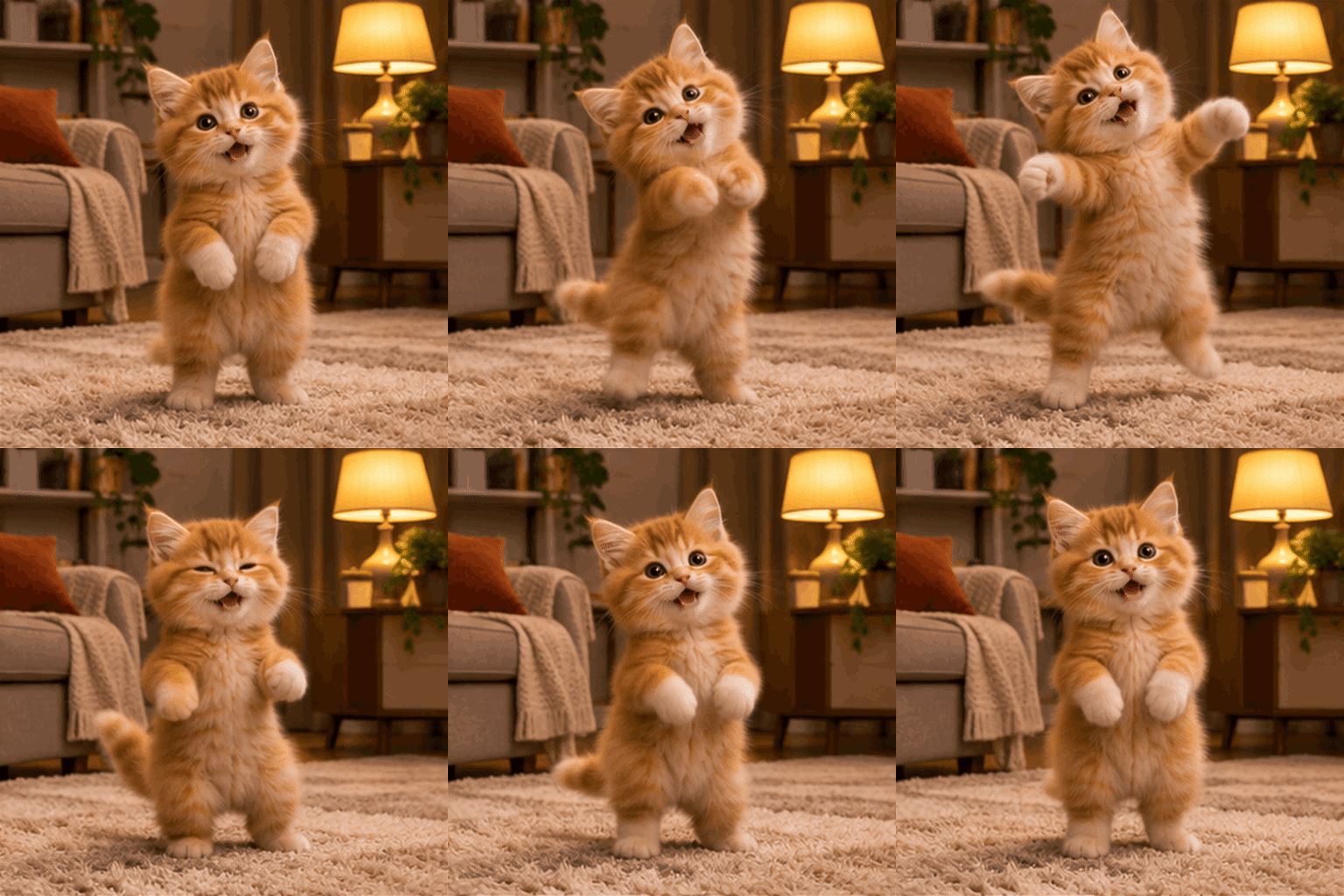
Original · 512×512 · 12 frames · 2048.0 KB
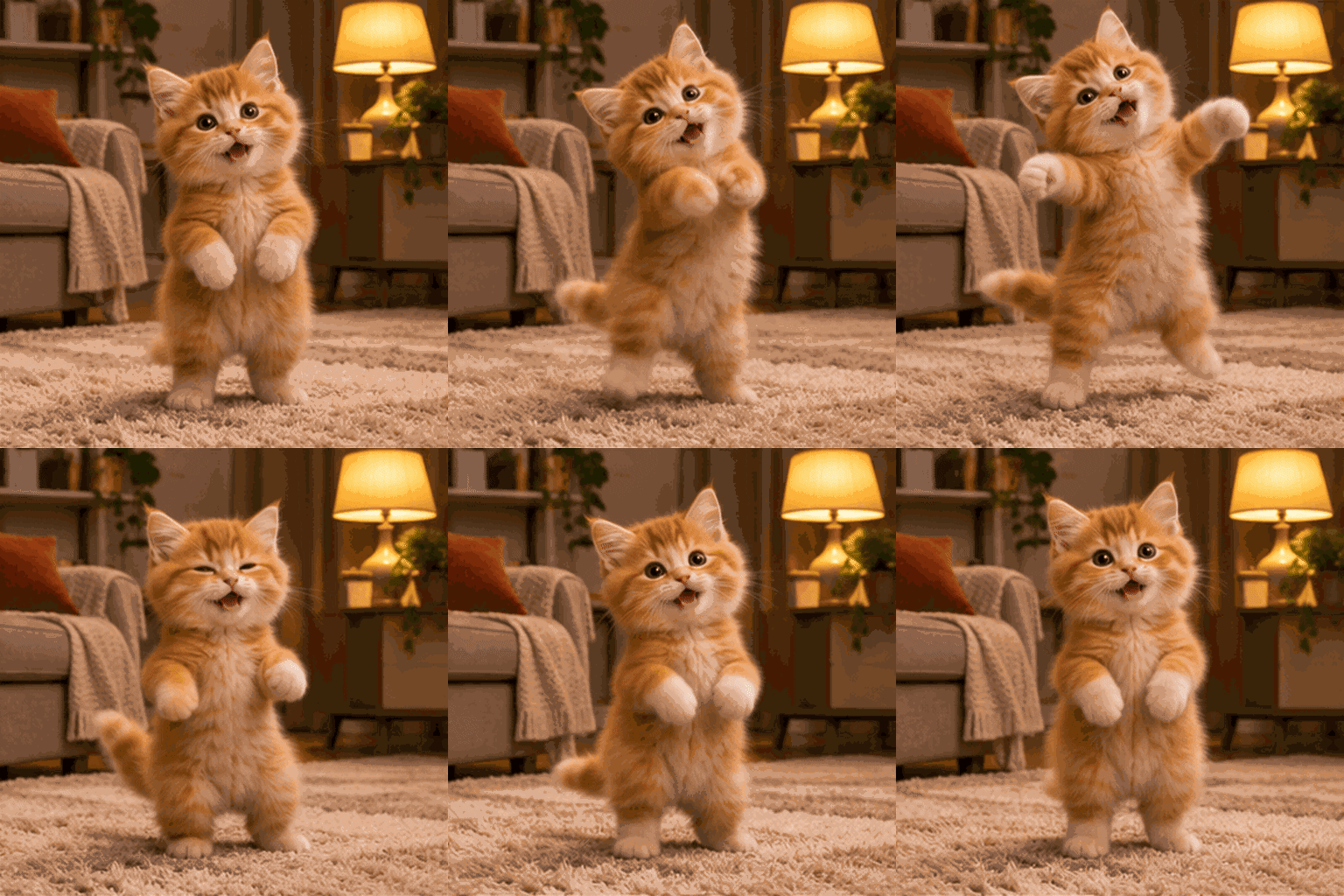
Compressed · 512×512 · 12 frames · 1226.7 KB

Original · 512×510 · 12 frames · 2017.9 KB

Compressed · 512×510 · 12 frames · 862.5 KB
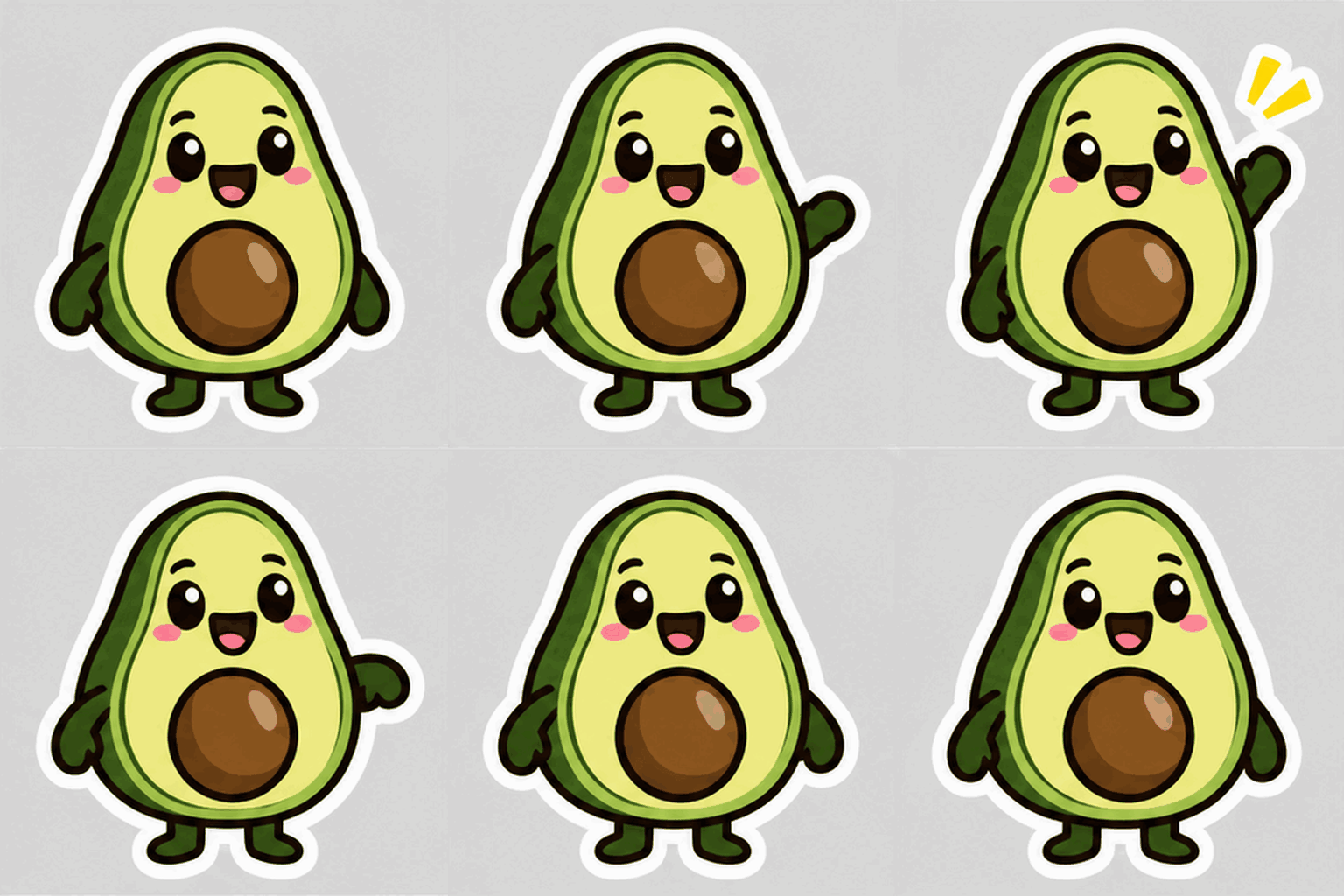
Original · 512×512 · 12 frames · 1532.4 KB
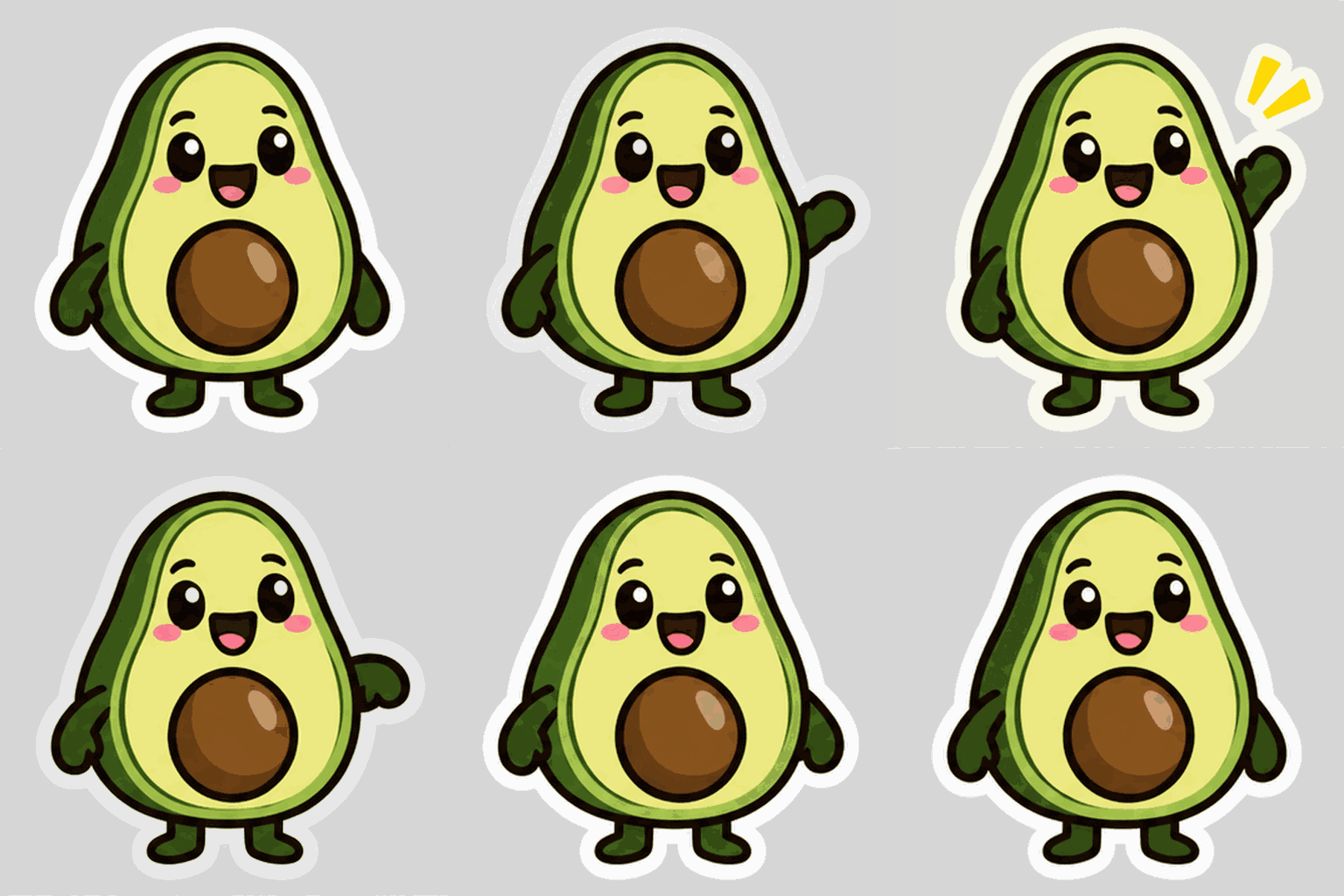
Compressed · 512×512 · 12 frames · 449.9 KB
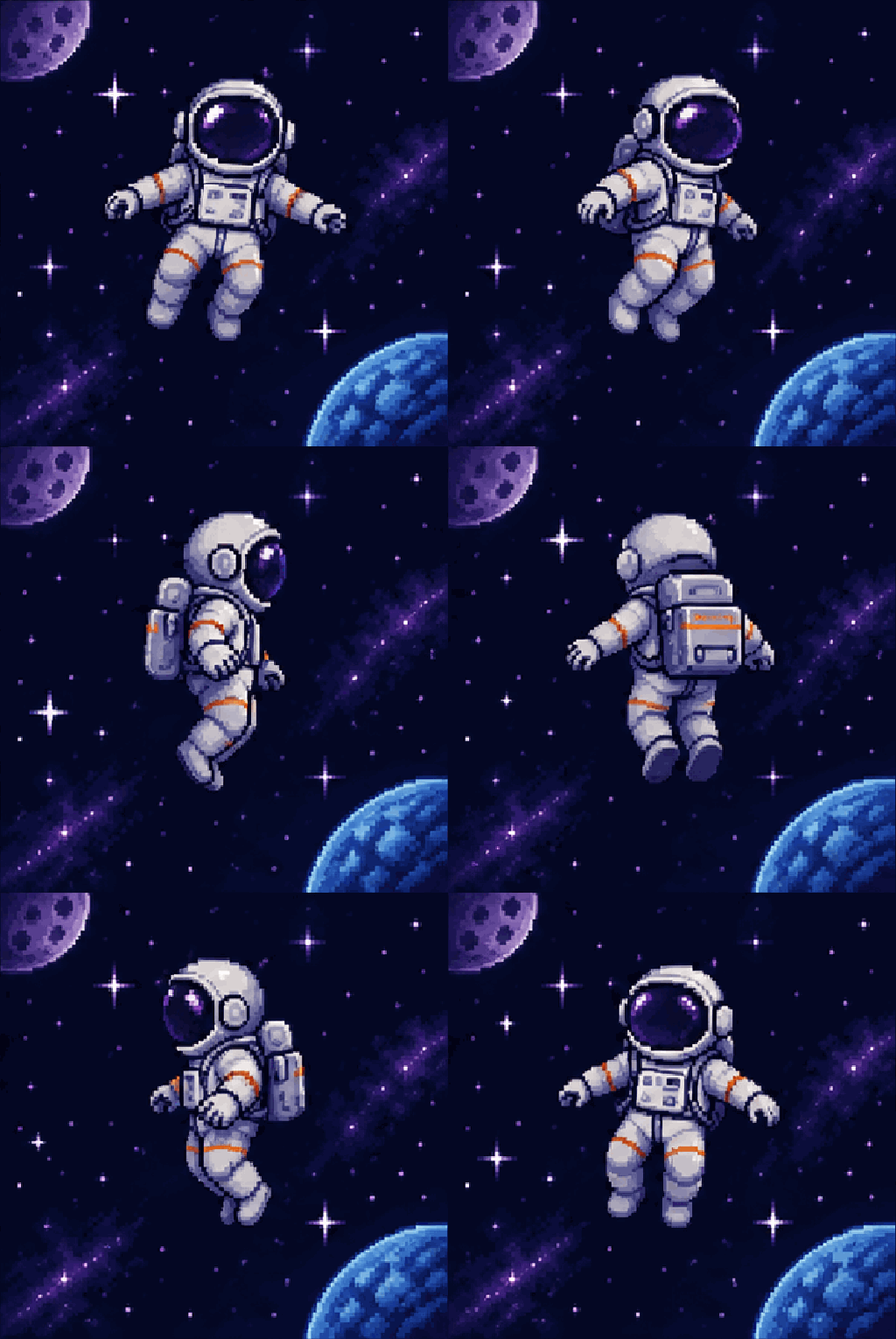
Original · 512×510 · 12 frames · 739.7 KB
Compressed · 128×128 · 6 frames · 23.8 KB